
Each CRM object (accounts, for instance) can receive fields specific to your business: an industry, a revenue figure, a first-contact date… The screen is reserved for Administrators and CRM administrators. Menu: CRM › CRM administration, Custom fields tab (address: /crm/admin/fields).
Choosing the object
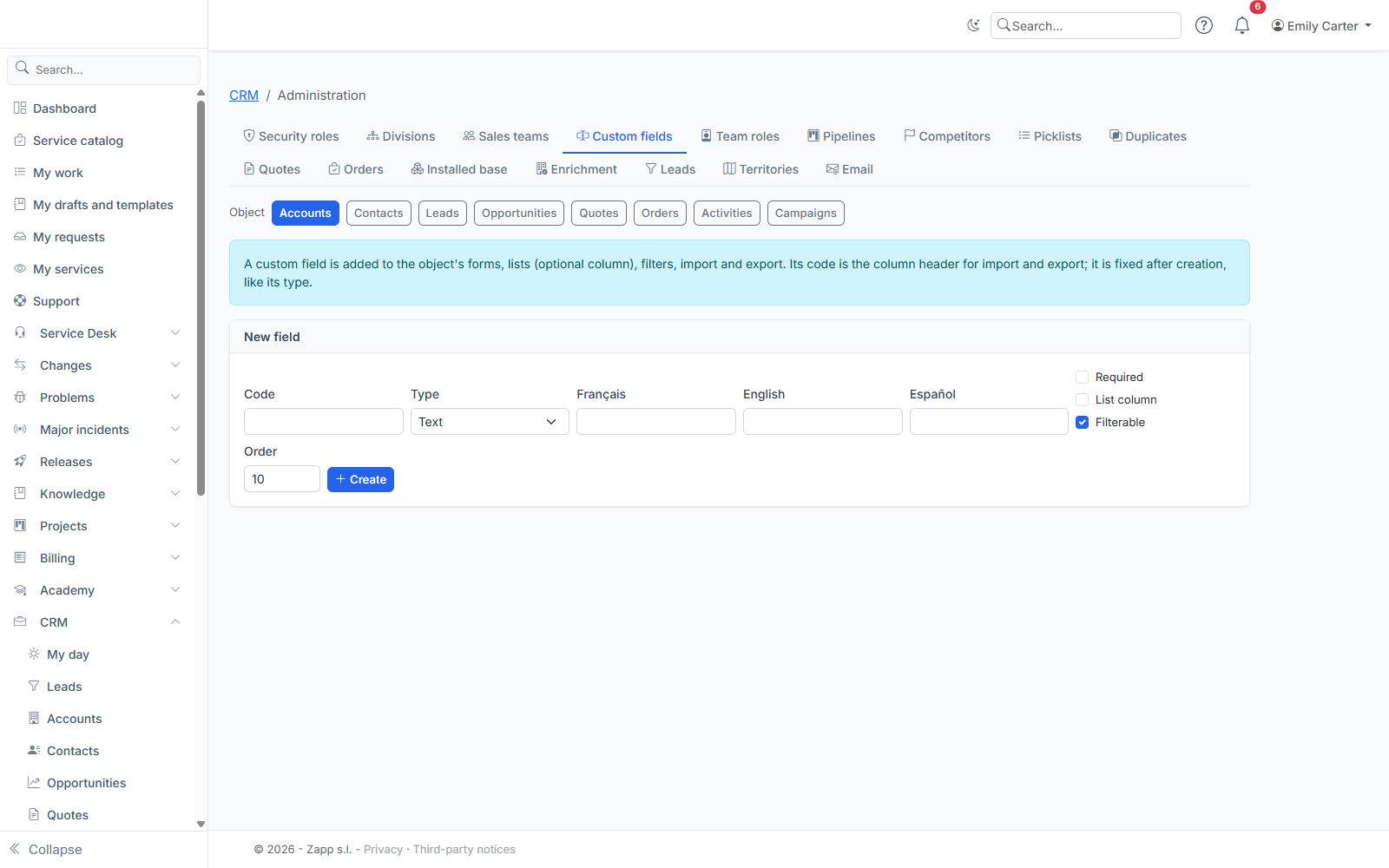
The buttons at the top of the page choose the object whose fields you manage.
Creating a field
Fill in New field:
- Code: lowercase letters, digits and underscores, starting with a letter. It is the column header for import and export. It is fixed after creation;
- Type, fixed too:
- Text;
- Number: at most four decimal places, and at most 14 digits before the decimal point;
- Date;
- List: enter the values one per line, as
code=Label(for exampleindustry=Industry); - Reference: the field points to a user, an organization or another CRM object;
- a label per language;
- Required, List column (the field is shown as a column in the object's lists) and Filterable (lists can be filtered on this field);
- display Order.
Click Create.
Editing a field
Each field is edited on its card: labels, list values, required, column, filterable, order, active, then Save. A list value label is entered in the interface language; labels in other languages are kept.
Deactivate a field rather than deleting it: its values are kept, and it disappears from forms, lists and filters.
Good to know
- A text filter finds “contains”, ignoring case and accents.
- A reference to a CRM object is only accepted if the person entering it can read the target record.
- Every change to a value is recorded in the record's history, with the old and new value.