
A contact is a person you deal with. They can work for several organizations and, if they are a customer, have a portal access account. Menu: CRM › Contacts (address: /crm/contacts).
Finding a contact
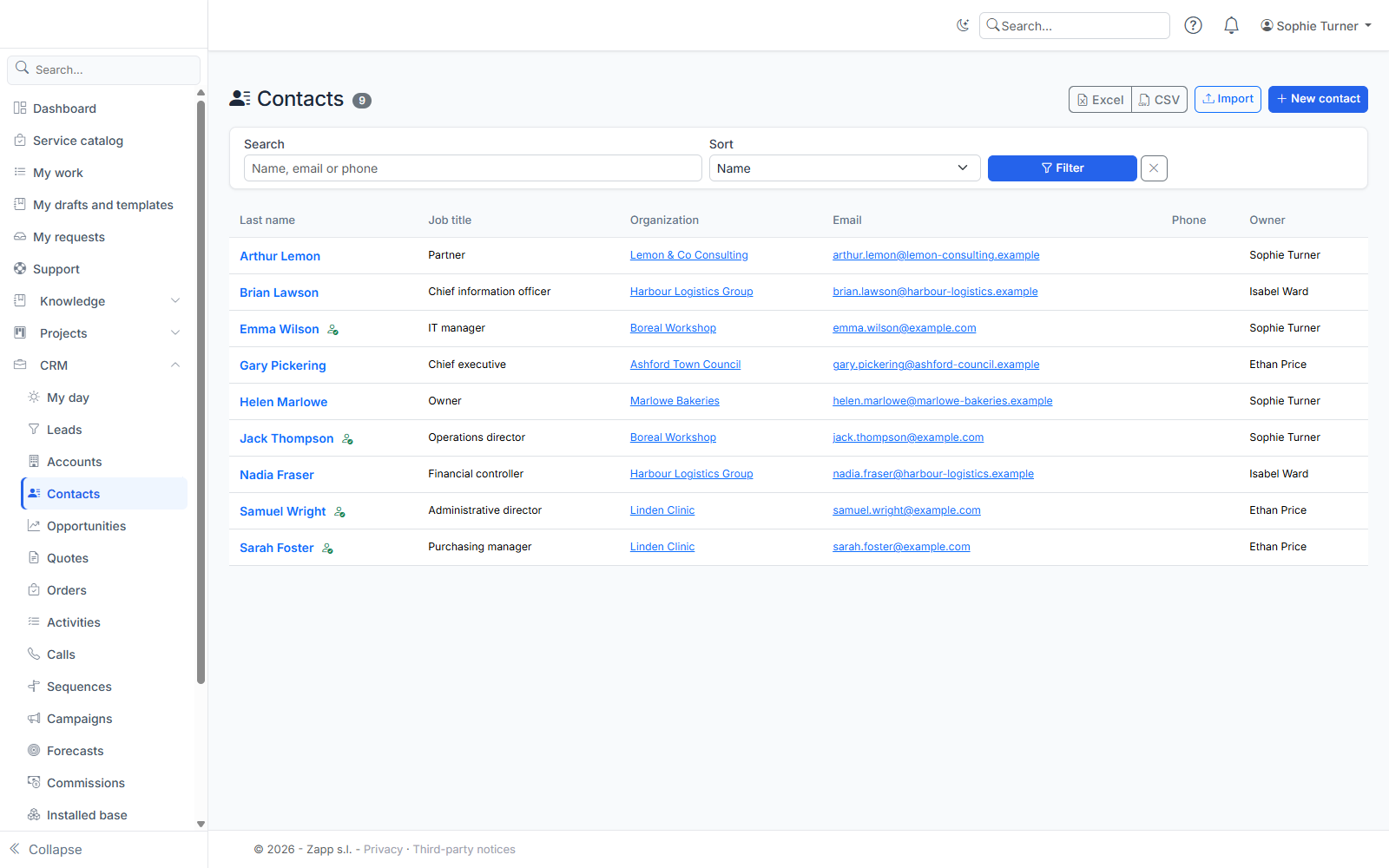
Search covers name, email and phone, ignoring case and accents. From an account record, See all opens the list of that organization's contacts. The Excel and CSV buttons export the filtered list.
Creating or editing a contact
Click New contact (from the list, or from an account record: the organization is then already linked). Fill in:
- Identity: salutation, first name, last name (required), job title, department, preferred language (among the instance's languages), time zone (sending hours of follow-up sequences), owner;
- Linked application account: for a contact with portal access. An account can be linked to one contact only;
- Contact details: two emails, phone, mobile, LinkedIn, address, country, description;
- Organizations: add as many as needed, with the job title held in each. The radio button sets the primary organization; without a choice, the first one is;
- Custom fields.
Duplicates are flagged as for accounts: same email, same name, same phone, or same name with the same business email domain (a public domain such as gmail.com never counts).
The contact record
It shows the contact details, the organizations (the primary one marked), the contact's roles on accounts (and soon opportunities), the consents, the GDPR actions, the custom fields and the history.
Roles are given from the account record, Contact roles card.
Consents and GDPR
See Contact consents and GDPR.