
A lead is a sales opportunity still to be qualified: a person, a company, or both. Menu: CRM › Leads (address: /crm/leads). You only see the leads your CRM roles open to you (see "Understanding what you see in the CRM").
Where leads come from
- Entry: New lead button. A name or a company is enough. A lead you enter belongs to you and counts as followed up.
- Web forms: a visitor fills in a form on the company website or on a page of the instance.
- Emails: an email from an unknown sender received on a mailbox read by the CRM becomes a lead.
- Import: Import button (CSV or Excel file), with column mapping and duplicate handling.
- Other applications: through the API or another module (an event registration, for example).
When someone already known as an open lead comes back (same email address) through manual entry, import or another application, the lead is completed instead of being created again, and its score goes up.
A web form or an email does not prove that the sender owns the address: it never changes the existing lead. The submission becomes a separate lead, marked Probable duplicate of… (link to the original lead) and given to the same salesperson; the original lead shows the Form submitted again (or Email received) event with the View the submission link, and its score takes it into account. Copy the useful information to the original lead, then reject the duplicate.
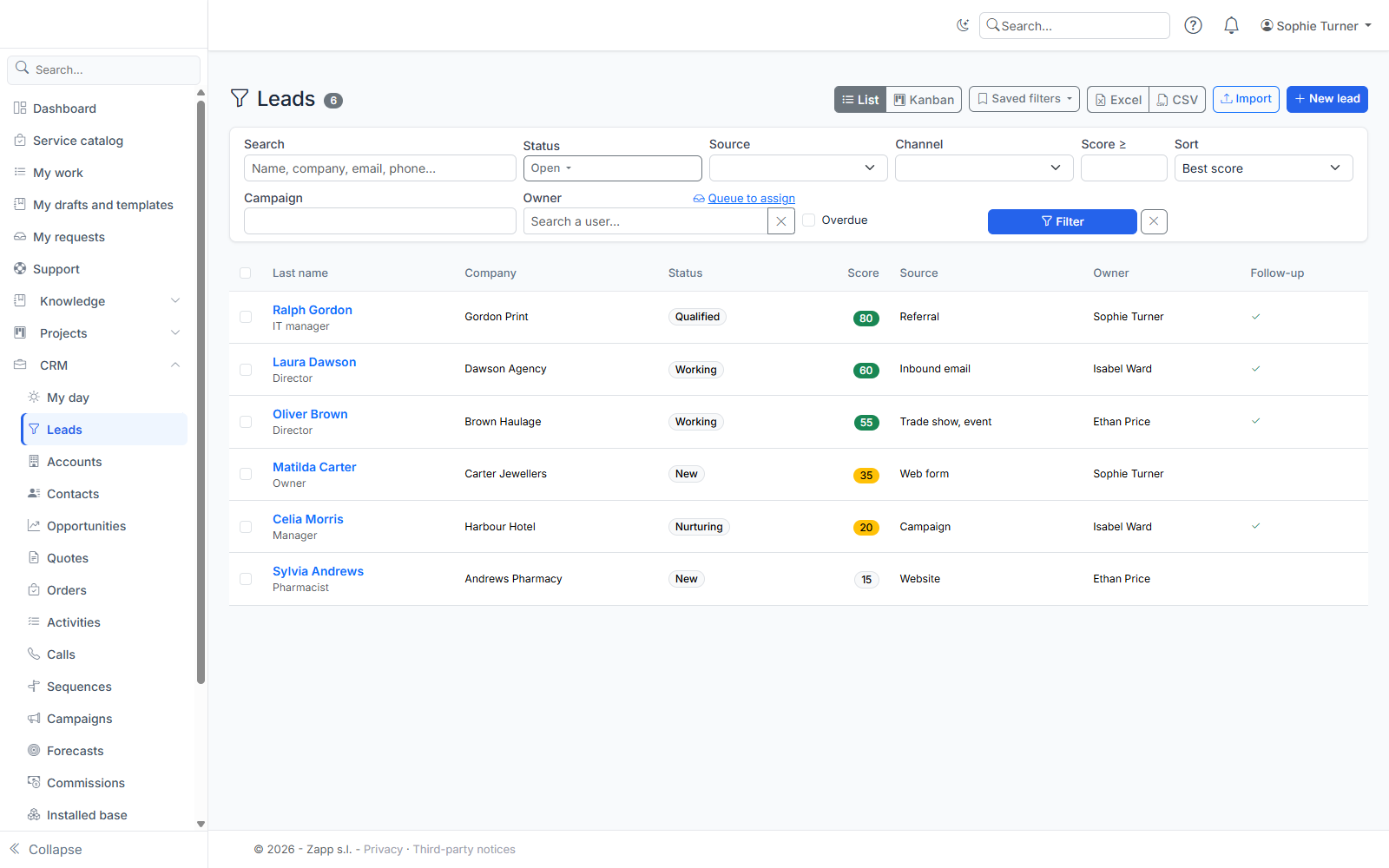
If no owner is possible (no rule, no default owner), the lead is saved To assign: managers find it with the Queue to assign link, under the "Owner" filter, and assign it.
The list and the kanban
- List: search (name, company, email, phone), filters (stage, owner, source, campaign, channel, minimum score, overdue, custom fields) and sorting (best score by default). Without a stage filter, only open leads are shown.
- Kanban: one column per open stage. Drag a card to another column to change its stage; if it is refused (rights), the card goes back.
- Saved filters: set the filters, then Saved filters › name › save. They are personal.
- Bulk actions: tick rows, then reassign them, change their stage or delete them. The summary shows how many were processed and refused.
- Export: Excel or CSV of the filtered list.
A lead's page
- Take ownership: an assigned lead has a follow-up deadline. Click Take ownership (or change its stage) to stop it. Past the deadline, the owner is alerted. If the rule that assigned the lead has Reassign at deadline, the lead goes through the whole assignment again (territories, then active assignment rules, then the default owner), excluding its current owner, three times at most. If it is then assigned by a territory or to the default owner, it no longer has a rule and is not reassigned again.
- Stages: New, Working, Nurturing, Qualified, Rejected (reason required). A rejected lead can be reopened.
- Qualification: answer each criterion with Yes, No or ? (budget, decision maker, need, timeline, according to your company's grid), then Save or Save and qualify.
- Score: the score and its details (rules that apply). If AI is available, Score with AI suggests a score from 0 to 100 with its reason; only structured, non-identifying attributes are sent (codes, numbers), never the description or the job title.
- Timeline: arrival, assignments, stage changes, new forms or emails received.
- Activities and timeline: the lead's tasks, calls, meetings and emails, including those linked automatically from your mailbox (see "Emails and calendar").
- Consents and Personal data (GDPR): as for a contact. Erasure keeps the stage, source and score. A consent ticked on a web form is marked To be confirmed: it is not an agreement. After talking with the person, record it again on the lead's page to confirm it.
Converting a lead
Convert button on the lead's page:
- Account: link the lead to an existing account (similar accounts are offered first), create the account of an existing organization, or create a new organization.
- Contact: use an existing contact (it is linked to the organization if it is not already) or create a new contact with the lead's details.
- Opportunity: if offered, tick Create an opportunity and give its name, amount, currency and expected close date. It is created in the default pipeline, at its first stage, with the contact as decision maker.
Only the lead's confirmed consents are copied to the contact; on an existing contact, you need the right to modify it (otherwise the conversion is done and a message says so). If two people convert the same lead at the same time, only one conversion takes place. The lead becomes Converted, keeps its history and shows links to the account and the contact; it can no longer be changed.