
A sequence automatically chains emails, calls and tasks at business-day intervals, on behalf of a salesperson. It stops by itself as soon as the contact replies, books a meeting or unsubscribes. Sequences are under CRM › Follow-up sequences.
Create a sequence
CRM managers and administrators create sequences (New sequence button):
- Name and description;
- Required purpose: the processing purpose (list of consent purposes) that must have a legal basis for each contact. No email is sent without it;
- Sending window: the hours during which automatic emails go out, in the contact's local time, on business days only;
- Automatic exit on reply, on meeting booked, on opportunity created. An unsubscribe always stops the sequence; a bounce stops it for the failed address, if a sequence email was really sent to it.
Then the steps, in order (use the arrows to move them):
| Step | What happens when it is due |
|---|---|
| Automatic email | The email goes out on behalf of the salesperson, within the sending window |
| Email to review | The salesperson gets a task; they review, edit and send the email, or skip the step. The sequence waits |
| Call task | A call to make appears in My day |
| Task | A free task appears in My day |
Each step has a delay in business days after the previous one (0 = immediately). An email uses a template (CRM email category of the Templates module) or a subject and a text with variables: {{contact_first_name}}, {{contact_name}}, {{account_name}}, {{sender_name}}. Tick Reply in the thread of the previous email for a "Re:" follow-up.
Draft with AI
When AI is enabled, the Draft with AI button of an email step suggests a subject and a text from the goal you describe and the chosen tone. The AI receives no contact data: it drafts a template with variables, which you review before saving.
Enroll contacts
On an active sequence, Enroll card:
- choose one or more contacts, or all contacts of an account;
- Send on behalf of: empty = you. Emails go out from the salesperson's mailbox when connected (Microsoft 365 or Google), otherwise from the application's mail service.
You can also enroll a contact from the Follow-up sequences panel of their record. A contact without an address, without a legal basis for the sequence purpose, already enrolled or that you cannot see is not enrolled: the summary gives the reason. You can also enroll a lead from the same panel on the lead page. For a lead, only confirmed consents count (a consent ticked on a web form stays "to be confirmed"); a converted or rejected lead cannot be enrolled, and a converted lead leaves its sequences.
Follow a sequence
A sequence page shows:
- the indicators: enrolled, running, reply rate, meetings booked, unsubscribes, bounces;
- for each step: executions, open rate, clicks, replies and meetings booked after that step;
- the enrollments, with the next step and its due date. The enrollment owner, or anyone who can edit the contact, can pause, resume or remove it.
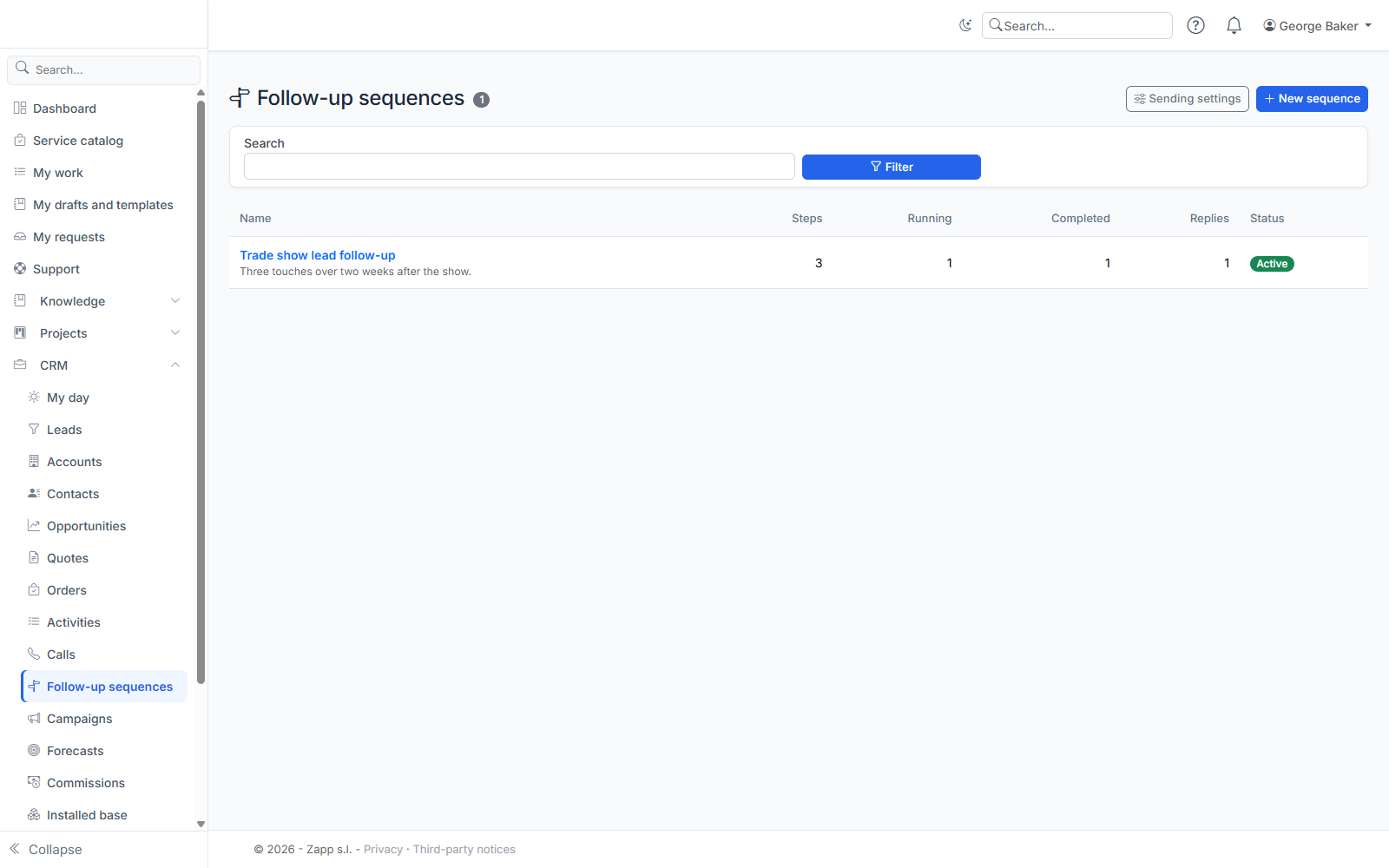
Figures only cover the contacts you can see. Opens and clicks are counted only when email tracking is enabled for the instance.
Emails to review
Your emails to review appear at the top of Follow-up sequences (My emails to review) and as tasks in My day. Open one, adjust the subject and text, then Send and continue the sequence, or Skip this step.
A double click sends the email only once; if sending fails, the email stays to be reviewed. If an automatic email could not be sent (mailbox disconnected, mail service down), the enrollment is paused with the error; once fixed, Resume sends the failed step again.
Unsubscribes and bounces
Each automatic email carries an Unsubscribe link at the bottom. The contact confirms on a public page; they then leave all their sequences and their "email" consent for the purpose is withdrawn. Without the instance public address set by the administrator, no automatic email is sent: the enrollment is paused with that reason.
A non-delivery report (bounce) stops the sequence for the failed address if a sequence email was really sent to it. Only a reply from the person themselves makes them leave: an automatic reply (out of office) or an email where they are only copied does not count.
Sending settings
CRM managers set, in Sending settings:
- the maximum number of automatic emails per salesperson per day; the day is the salesperson's (time zone of their booking page, otherwise the zone below); beyond that, sends wait for the next day;
- the time zone of contacts without one (a contact's time zone is entered on their record);
- the working calendar, when the Service Desk is installed: choose one of its calendars to use its working days, public holidays and closures (see "Define SLAs and OLAs"); "None" keeps the settings below;
- the business days and public holidays (one date per line, yyyy-mm-dd format). With a working calendar, business days come from the calendar, and the public holidays entered here are added to it.