
A quote is the priced proposal you send to the customer for an opportunity: product or service lines, discounts, totals with tax, terms. It is drafted, approved when needed, sent (by email or for electronic signature), then the customer accepts or declines it. Menu: CRM › Quotes (address: /crm/quotes).
You only see the quotes your CRM roles open to you (yours, your team's, your division's, or all), plus those whose team you belong to or that are shared with you.
Creating a quote
A quote is created from an open opportunity's page: Quotes panel, New quote button. Fill in:
- the title (the opportunity's is suggested);
- the recipient contact: their address and name are suggested when sending and for the signature;
- the currency (the opportunity's by default) and the document language (the instance's by default);
- the validity date (empty: the duration set by the administration, 30 days by default);
- an enforced price list, if you do not want pricing to choose the account's one;
- an overall discount, an introduction, terms (the default terms are used if you leave it empty);
- internal notes: they are never printed or sent to the customer;
- the owner: left empty, the quote goes to the opportunity owner, even if you are the one preparing it (the order and the commission follow them). If you are not allowed to assign it to them, the quote stays yours.
Tick Copy the opportunity's product lines to start from the lines already entered on the deal.
Each quote gets a number (for example Q2026-00042). The first quote of an opportunity is its primary quote (star): the opportunity amount follows this quote's total excluding tax. Exception: if the opportunity has product lines of its own, those lines carry its amount.
Lines
Under Lines, three tabs:
- Catalog product: pick the product and the quantity. Leave the price empty to use the catalog price lists for this account, as of today; tax, frequency (monthly, yearly…) and commitment term come from the product. A bundle lists the products it includes.
- Free line: a description and a price you type (for example a one-off service).
- Section: a title to group lines on the document.
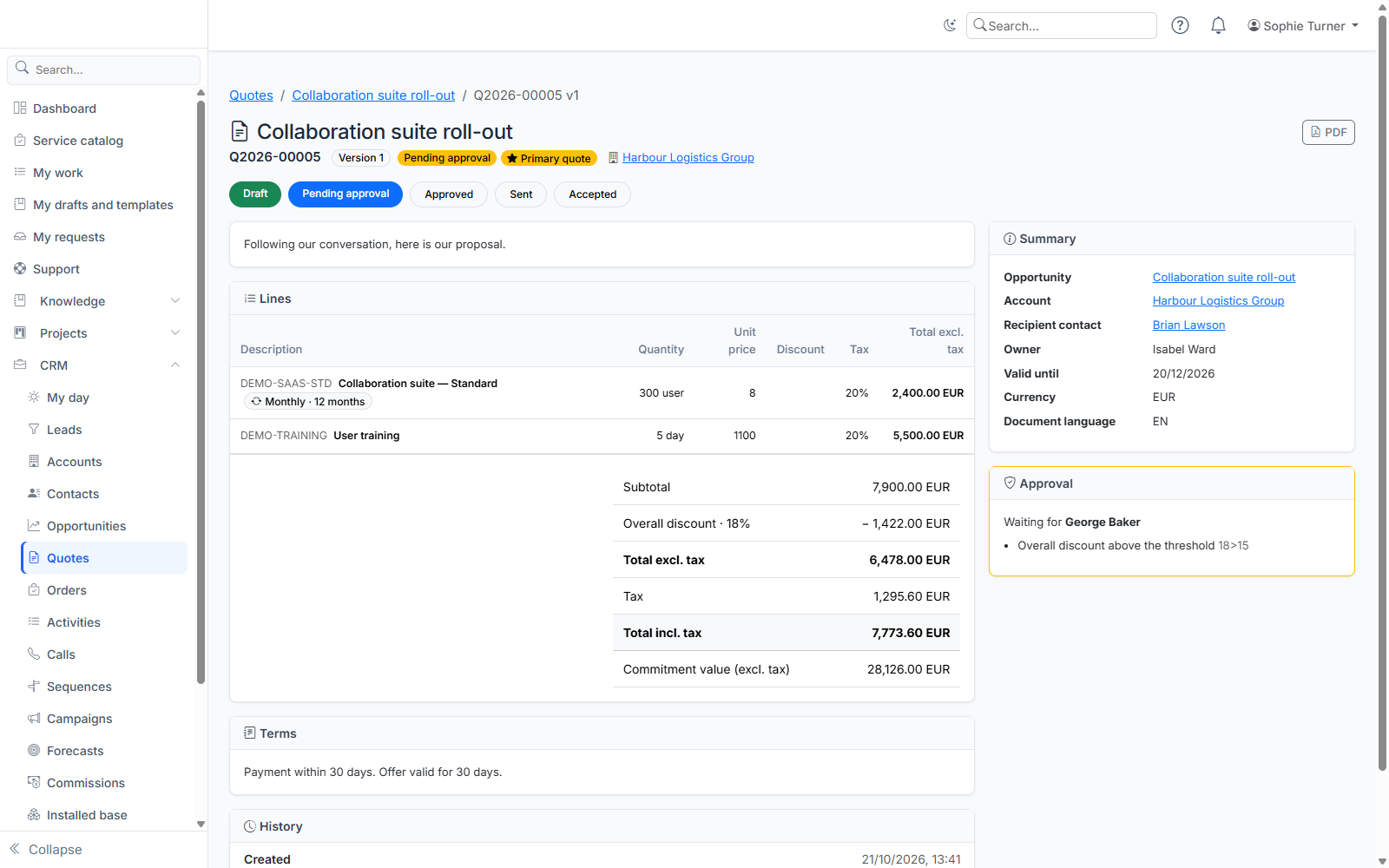
Each line has its own discount percentage. The arrows reorder lines, the pencil opens editing, the bin deletes the line. Refresh catalog prices updates the lines whose price you did not type.
Under the lines, the totals: subtotal, overall discount, total excl. tax, tax (per rate), total incl. tax and, for subscriptions, the value over the commitment term. If you may see catalog costs, you also see the cost price and the margin: they never appear on the document sent.
Approval
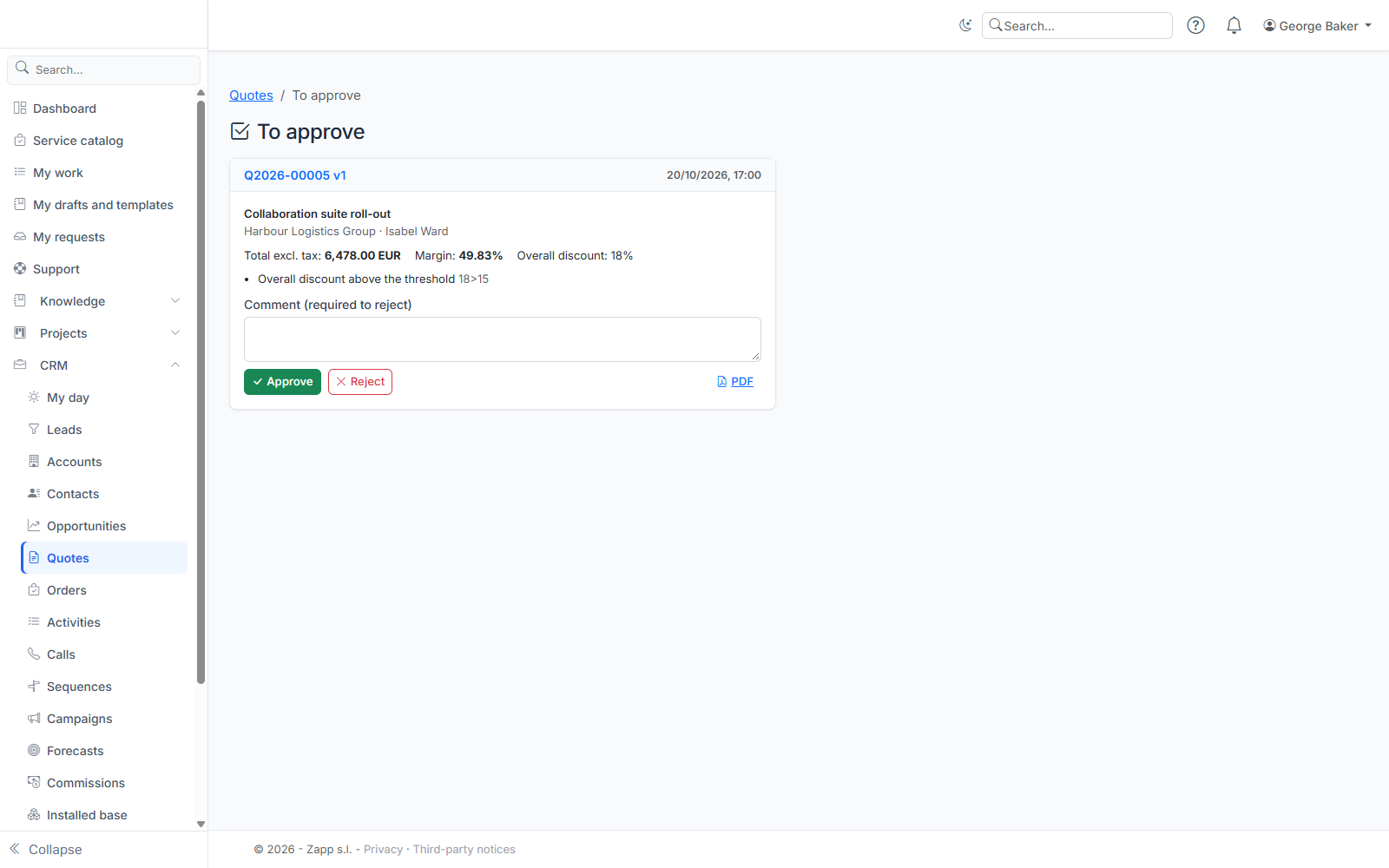
Your administration can require approval beyond some thresholds: line or overall discount too high, margin too low, sensitive product, large amount. The Approval panel warns you while drafting ("This quote will require approval"), with the reasons.
When the quote is ready, click Finish drafting (or directly Send):
- no rule is triggered: the quote is approved straight away and ready to send;
- otherwise it goes to approval with your manager (or CRM administrators if you have none, or an approval process if the administration chose one). It is locked until the decision; you can withdraw the request to edit it.
The approver decides from the quote page or from CRM › Quotes › To approve; a rejection always carries a reason and the quote goes back to draft. Editing an approved quote also takes it back to draft: the approval covered the previous content.
The approver does not need to use the CRM: a manager or a finance director without CRM access opens the link in the notification (To approve page), sees only the quotes they have to approve and decides, without a CRM licence: see "Approve a quote".
Sending the quote
The PDF button downloads the document (in the quote's language, with your instance's colours). The Send to the customer panel:
- Recipients: one or more addresses, comma-separated (the contact's is suggested); the PDF is attached to the email.
- Message: your text, which replaces the default message.
- Request electronic signature (if your administration configured it): enter the signer; they receive an invitation to sign online. You can send the email with the PDF at the same time, or only the invitation.
The quote becomes Sent. The PDF sent is kept: the PDF button returns it from then on.
Editing a sent quote: versions
A sent quote can no longer be edited. Click New version: version 2 is created with the same lines, as a draft; the previous one is superseded (find it in the Versions panel). A pending electronic signature is cancelled. Discard this version deletes the revision and makes the previous version active again.
Customer's answer
- Electronic signature: as soon as the customer has signed, the quote becomes Accepted on its own and the signed document is kept. If they decline, the quote becomes Declined.
- Manual acceptance: in the Customer's answer panel, enter who signed, the date, and attach the signed document (required when the Files module is active), then Record acceptance.
- Refusal: enter the reason and click Declined by the customer.
An accepted quote becomes the primary quote, and its opportunity is marked won with its amount (administration setting). If the opportunity cannot be closed automatically (required win reason or field), a message tells you: close it from its page.
Finding quotes
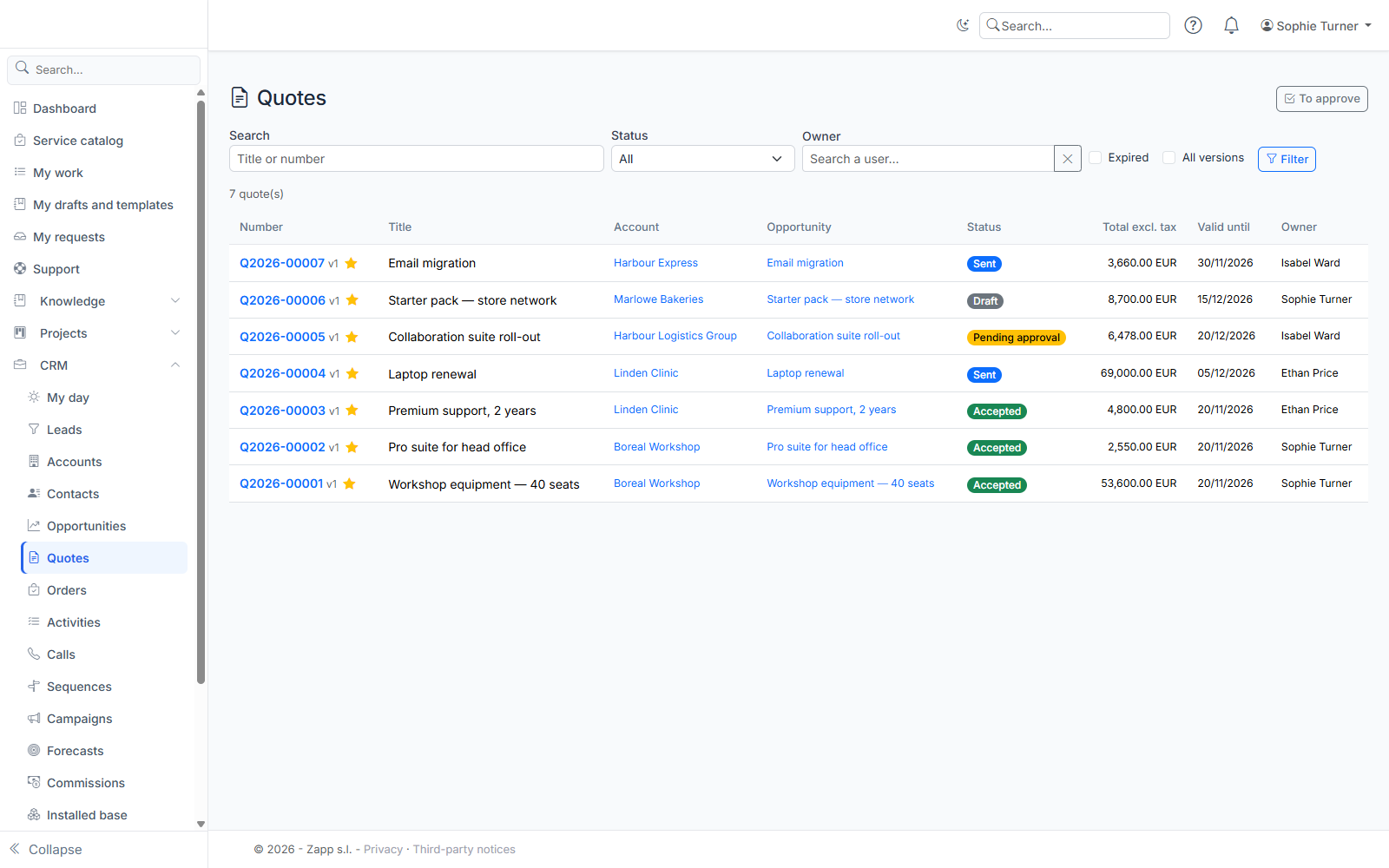
The CRM › Quotes list filters by title or number, status, owner, expired quotes (sent and past their validity) and all versions. Opportunity and account pages have a Quotes panel.
A quote never sent can be deleted; a sent quote is kept (revise it or leave it declined). An opportunity with quotes, or a product appearing on a quote, cannot be deleted.