
Catalog prices live in price lists, each in one currency. All CRM users can view these screens; CRM catalog managers, CRM administrators and Administrators can change them. Menu: CRM › Catalog, tabs Price lists, Currencies and rates and Import and export.
Start with the base currency
Currencies and rates tab (address: /crm/catalog/currencies). First declare the base currency, the one of the company's accounts and purchase costs, with its three-letter ISO code (EUR, USD, CHF…) and its number of decimals. Then add the other currencies.
For each other currency, enter dated rates: the rate says how many units of that currency equal one unit of the base currency, from the chosen date onwards. The rate applied on a date is the last one known on that date; a rate entered on an existing date replaces it. A future rate is shown in blue, the rate in force in bold.
The base currency can no longer change once rates have been entered.
Creating a price list
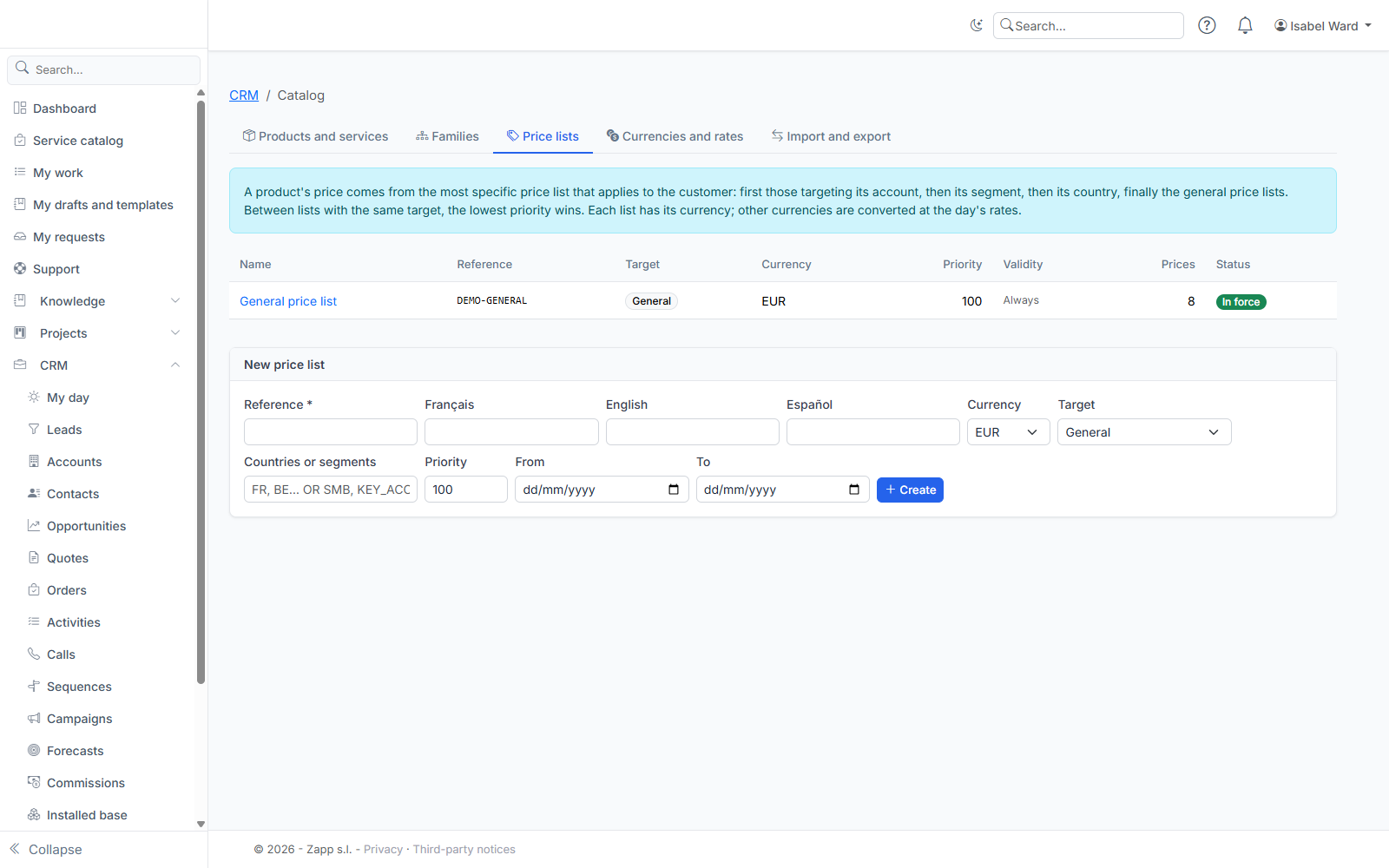
Price lists tab (address: /crm/catalog/price-lists), New price list card:
- a unique code and a name in each language;
- the list's currency, which can no longer change once prices have been entered;
- the target:
- General: for all customers;
- Countries: enter two-letter country codes (
FR, BE, CH); - Segments: enter your segment codes (
SMB, KEY_ACCOUNTS); - Accounts: you choose the organisations on the price list's record;
- the priority (lower = takes precedence);
- an optional validity (from… to…).
Entering prices
On the price list's record, add a price: the product, the quantity from which it applies, the unit price and an optional validity. For tiers, add several prices for the same product with different quantities: 10 from 1, 9 from 10, 8 from 100. The highest tier reached by the quantity applies.
Two prices for the same tier cannot overlap in time: for an increase on 1 January, end the old price on 31 December and create the new one from 1 January.
You can also add a price from a product's record, Prices per price list card.
Which price applies?
For a given customer, on a given date:
- only active price lists valid on that date count;
- the most specific list wins: those targeting the customer's account, then its segment, then its country, finally the general lists;
- between lists with the same target, the lowest priority wins, then the one whose currency is the requested currency;
- if that list has no price for the product, the next list is used;
- if the requested currency differs from the list's, the price is converted at the rate of the quote date.
The simulator
On a product's record, the Price simulator card calculates a price for a quantity, a currency, a date, an account, a country and a segment (and a bundle's options). It shows the unit price, the total excluding tax, the tier applied, any conversion, a subscription's commitment value and, depending on your rights, the cost and margin. Quotes will use exactly this calculation.
Importing and exporting
Import and export tab (address: /crm/catalog/import-export):
- Export products or prices (from one price list or all) to Excel or CSV. The exported file is also the import template;
- Import an Excel (
.xlsx) or CSV file (UTF-8, semicolon, comma or tab separator). Formats: numbers with a decimal dot and no thousands separator (1234.5), datesYYYY-MM-DD,true/false. A number written1,5or1,234.50is rejected (error on the row) rather than guessed:1,500could mean 1.5 as well as 1,500. In an Excel file, a numeric cell is read for its value, whatever its display format.
Always run Simulate first: the report lists the rows to create, to update, unchanged and in error (with the row number and column), without saving anything. It is identical to the real import's report: each row is checked taking the previous rows of the file into account (a row that closes a price frees the period for the next row). Then click Import.
- An existing product (same reference) is updated; a column missing from the file keeps its value.
- A price is identified by price list, product, “from quantity” and validity start.
- A row in error does not prevent the others from being imported.
- Amounts have at most 4 decimals (2 for a tax rate or a discount, 8 for an exchange rate): a more precise value is rejected, never silently rounded.
- The cost columns (
cost_source,cost_price,cost_currency) are only in the export for people who can see costs and margins. On import, they are ignored for everyone else: a product's existing cost stays as it is.