
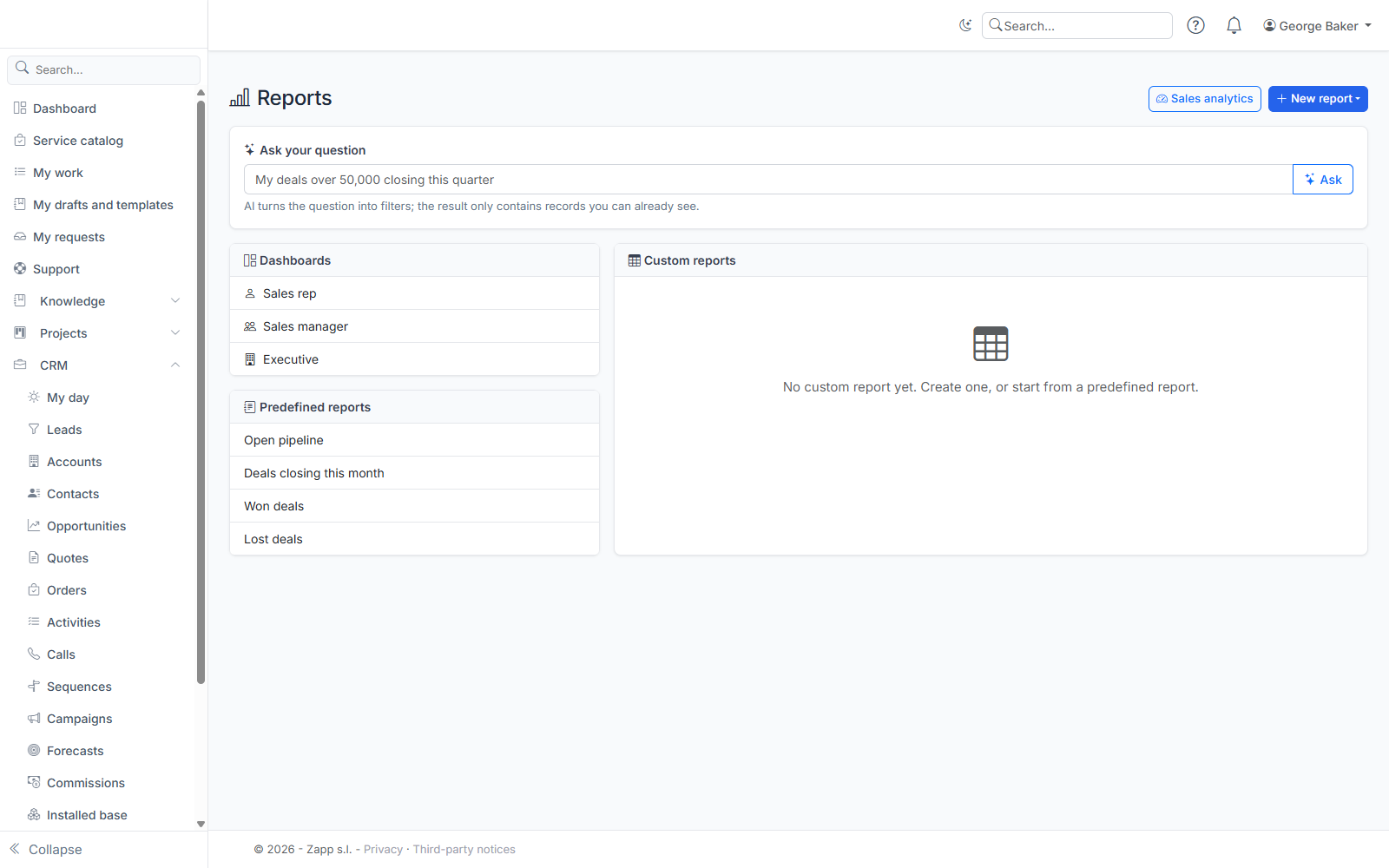
The Reports screen (menu CRM › Reports, address: /crm/reports) brings together the dashboards, the sales analytics and your reports.
Everything you see there is computed for you: a report never shows more than what you already see in the CRM lists. A report shared by a colleague, or received through a scheduled delivery, applies to your own records.
Sales analytics
The Sales analytics button opens every indicator for a period. Choose Month, Quarter or Year; the arrows move to the previous or next period.
- Key figures: won amount, win rate (won out of won and lost), average deal, average sales cycle, open and weighted pipeline.
- Pipeline by stage: the open deals of the default pipeline, with their count and amount at each stage.
- Conversion funnel: leads created then converted (when the CRM manages leads), opportunities created in the period, then those of them already won. Each percentage belongs to its own group: leads converted out of leads created, deals won out of deals created.
- Forecast and closed: your closed amount against your personal quota, and your team's closed amount (you and your reports) against the sum of your personal quotas, over the last four periods.
- Time per stage: the average number of days closed deals spent in each stage.
- Won / lost: closed deals by win or loss reason.
- Sources and campaigns: for each source and campaign, the deals won, the win rate and the won amount.
- Activity by sales rep: completed calls, meetings, emails and tasks, when the CRM manages activities.
Amounts are converted into the catalog's base currency. A deal whose currency has no exchange rate is flagged and not counted.
Dashboards
Three dashboards are delivered: CRM — Sales rep, CRM — Sales manager and CRM — Executive. Open them from the Reports screen or from the dashboards menu. They do not replace your home dashboard.
You can also add the sales widgets to any dashboard: key figures, pipeline by stage, funnel, closed vs quota, forecast and closed, time per stage, won / lost, most profitable sources, activity by sales rep. Every widget except the pipeline can be set to the current month, quarter or year.
Predefined reports
Open pipeline, Deals closing this month, Won deals and Lost deals open in the editor. You can change them and save them as a personal report.
Creating a custom report
- Click New report and choose the object: accounts, contacts or opportunities.
- Tick the columns to display.
- Add filters. All filters apply at once. For each filter, choose the field, the operator and the value:
- dates as YYYY-MM-DD (for example 2026-12-31), numbers with a dot (1500.50); a whole-number field (probability, employees) does not accept decimals;
- an amount can carry its currency:
50000 EUR,44000 USD. Without a currency, it is in the base currency. Amounts are compared after conversion at today's rate: "more than 50000 EUR" keeps a 60,000 GBP deal. A deal whose currency has no rate never matches an amount filter; - text is compared ignoring case and accents: "mexico" finds "México";
memeans the person reading the report: "Owner equals me" gives everyone their own deals;- the within the period operator accepts
this_month,this_quarter,next_quarter,last_30_days,this_year… The period is recomputed at each run, so a scheduled report stays right.
- Choose the sort, then click Run to see the result.
- Give it a name and click Save.
An unreadable filter (badly written date, unknown value) is refused with a message: it is never ignored, so the result is never wider than intended.
The preview shows at most 500 rows; the export contains everything.
Sharing, exporting, scheduling
- Share: tick Share with CRM users. Your colleagues see the report in their list; each of them reads it on their own records. Only the author can change or delete it. To adapt it, a colleague saves a copy.
- Export: Export (Excel) or Export (CSV). The export follows your export right, which can be narrower than your read right.
- Schedule delivery: the button only appears if you are allowed to schedule deliveries (administrators and the "Report scheduling" group). It opens the scheduled deliveries screen with the report preselected. Each recipient receives the report computed with their own rights; with an attachment (CSV or Excel), their export right applies.
- Anonymized contacts (right to be forgotten) never appear in a report or an export.
- CRM reports are also offered in the dashboards' Report table widget.
Asking a question
When AI is enabled, an Ask your question box appears at the top of the screen. Type for example "my deals over 50,000 closing this quarter": AI turns the question into columns and filters, which you see and can change before saving.
Only your question is sent to the AI, never CRM data. When AI is disabled, the box does not appear and everything else works.