
CRM administration sets who sees what. It is reserved for Administrators and CRM administrators. Menu: CRM › CRM administration (address: /crm/admin). The tabs group security roles, divisions, sales teams, custom fields and team roles.
Security roles
A role grants, for each CRM object and each action, a scope: None, Mine, My team, My division or All (see “Understanding what you see in the CRM”).
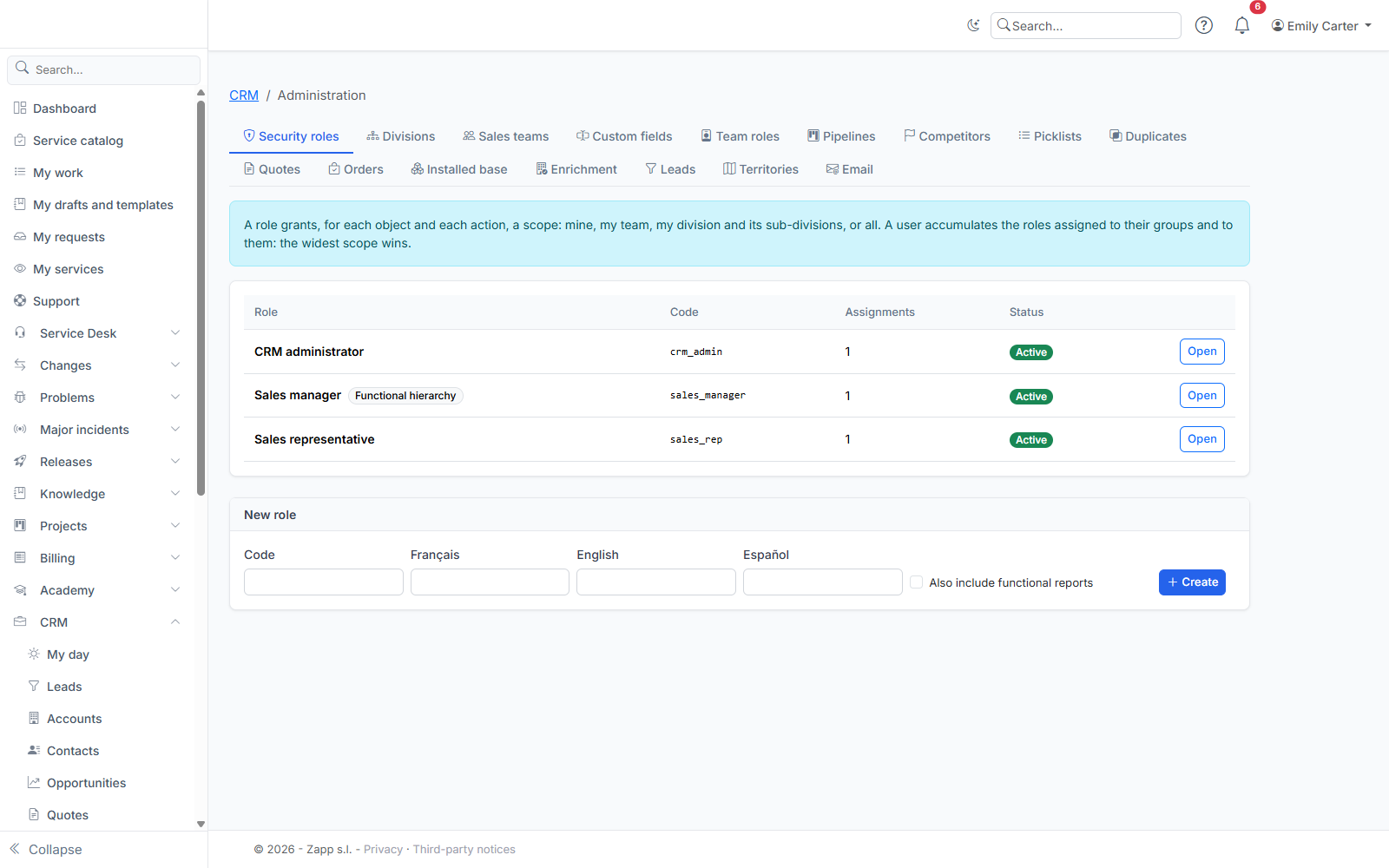
- New role: enter a code (lowercase letters, digits, dashes), a name per language, then Create. The role page opens.
- Scope per object and action: choose a scope in each cell, then Save.
- Also include functional reports: by default, the hierarchy only counts line-manager links. Tick this box so that a manager also sees what the people they functionally manage see (matrix organization).
- Assignments: assign the role to a group (simplest) or directly to a user. A user accumulates the roles of their groups and their own.
- Delete this role: a first click arms the button, a second one confirms. Its assignments disappear with it.
Three roles are provided and can be changed:
| Role | Assigned to | In short |
|---|---|---|
| Sales representative | CRM users | Reads their team's records, manages their own, deletes nothing |
| Sales manager | Sales managers | Manages their division, deletes within their team, counts functional reports |
| CRM administrator | CRM administrators | All |
A provided role that has been changed or deleted is never restored. An application Administrator administers the CRM but does not see its data without a role: add them to the CRM administrators group if needed.
Divisions
Divisions form a tree: the company, its regions, its branches… The “My division” scope covers the user's division and all its sub-divisions.
- New division: a name, an optional (unique) code and a parent division (or the root).
- Each row of the tree is edited in place: name, code, parent division, active. A division cannot be placed under one of its sub-divisions.
- The trash icon deletes a division that no longer has any sub-division, user, record or team. If records or teams are still attached to it, reassign them first: otherwise they would drop out of the "My division" scope of their managers.
- Users per division: choose a user and their division, then Save. A user belongs to a single division; choose “(none)” to remove them.
A record takes its owner's division when it is assigned to them. Moving a user to another division does not move their existing records: reassign them if needed.
Sales teams
A team groups salespeople who work together, optionally attached to a division. The “My team” scope covers records whose owner belongs to one of your teams, and a record can be shared with a whole team.
- New team: a name and an optional division.
- On each card: change the name, division or status, add a member (search by name or e-mail) or remove one (cross on their name).
Team roles
A record's team (an account, an opportunity…) gathers the people working on it, each with a role: Presales, Technician and Partner are provided. Add others with a code and a name per language, or deactivate the ones you do not use.
The manager hierarchy
A manager sees what the people they manage see. Managers are entered on each user's record (Administration › Users, Managers and history button), by hand or through a directory synchronization (see the help page on managing accounts).