
A role says what a person can do, in business terms: "Manage payments", "Handle tickets". You no longer need to know which group opens which screen. Behind it, MyZapp sets the right groups: permissions remain those of the groups (see "Manage groups").
Where to set roles
- Administrators open the Users screen, edit an account, then choose the Roles tab.
- The referent of an organization opens Roles on a person of their organization, from the list of people. They only see the roles that can be delegated to them and cannot change their own account.
Roles are sorted by domain, with a sentence saying what they allow. Ticking or unticking a box applies immediately: there is nothing to save.
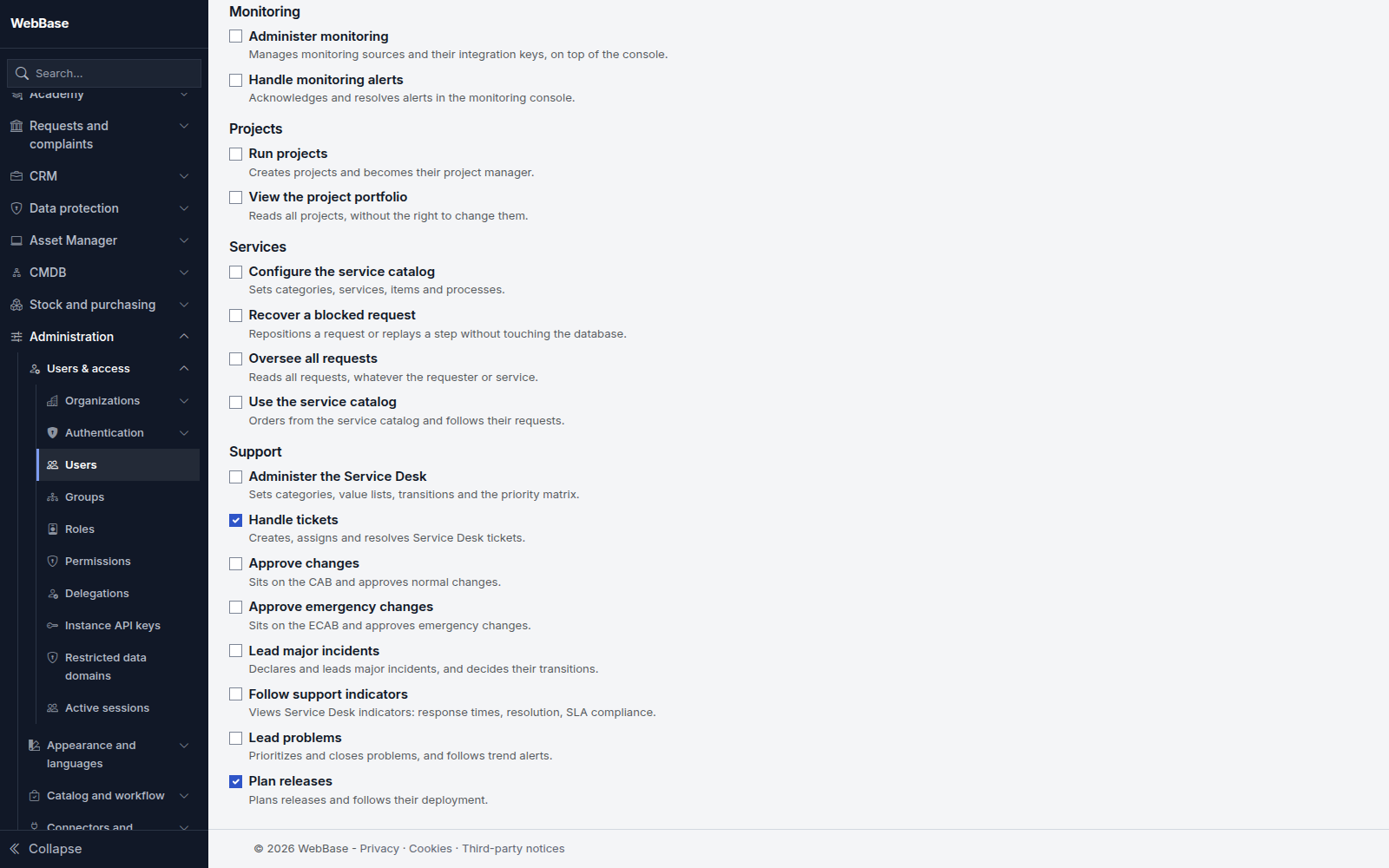
What a box does
- Ticking adds the person to the groups of the role.
- Unticking removes them from the groups of this role, except those another of their roles still justifies.
- A role included in a ticked role shows as ticked and greyed out, with the words "Included in". To remove it, untick the role that includes it.
Adding someone to a group from the Groups screen also gives them the matching role: both screens show the same reality.
Reported gaps
The tab reports what does not match a role, without correcting anything by itself:
- Incomplete: the person only has part of the groups of the role. Tick the role to complete it, or adjust their groups in the Account tab.
- Groups outside any role: the person belongs to a group no role explains. These groups stay in place.
Client and partner accounts
An account attached to a client or partner organization is only offered roles open to external accounts. An internal role is refused.
Roles and seats
Some roles open a module licensed by seat. The role says what the person may do, the seat that the license covers them: both are needed to get access. Under each role concerned, the tab shows whether the seat is assigned, to assign, whether none is left, or whether the module is not licensed, with the seats left in the pool.
- When ticking a role that needs a seat, MyZapp offers to assign the seat in the same action, or the role only. No seat is consumed unless you chose it. If the person already has a seat in a higher pool, nothing is consumed; if they have a lower-tier seat, it is moved, not doubled.
- If no seat is left, the role can still be saved. The screen says the person will not have access until a seat is freed or bought.
- When unticking a role, MyZapp offers to give back the seat if none of the person's roles needs it any more. It is never given back automatically.
- On the Licenses screen, removing a seat reports the person's roles that no longer give access.
The referent of an organization assigns the roles delegated to them, but not seats: an administrator handles those. Service accounts need no seat.
Role view and access reviews
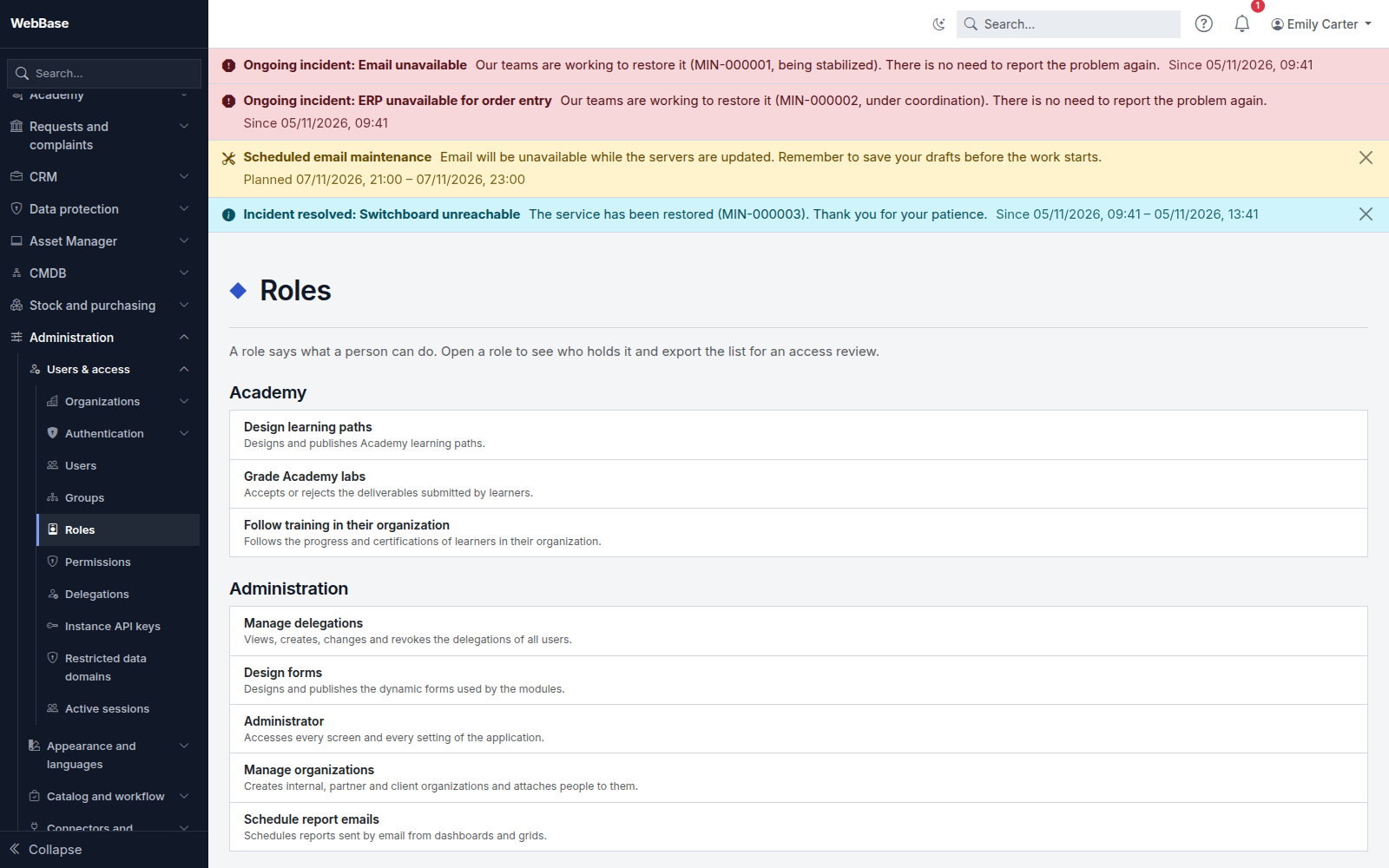
The Roles screen (menu Administration › Users and access › Roles) is for Administrators. It lists roles by domain. Open a role to see its holders, with their organization, the assignment date and who made it.
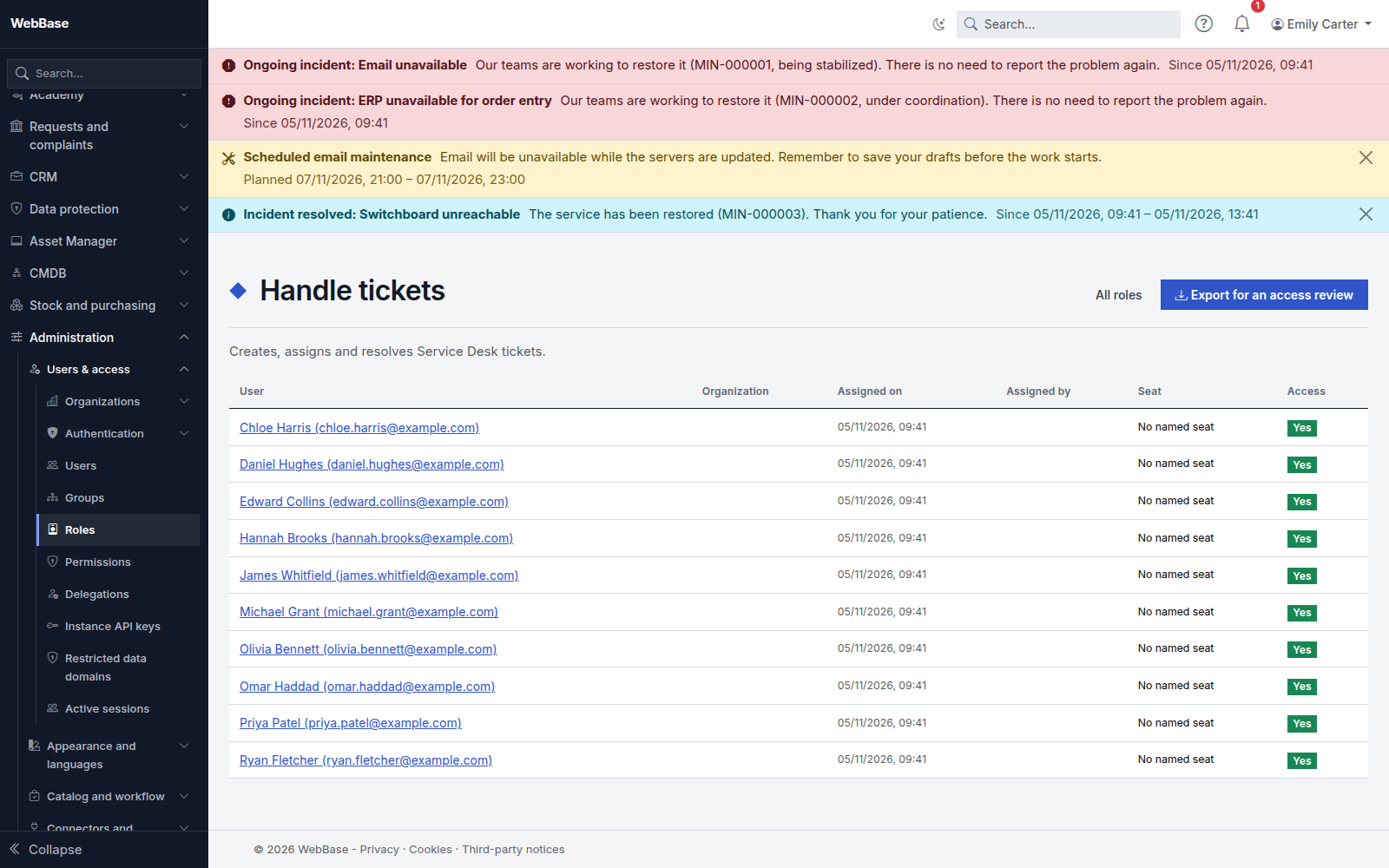
The Access column points out what a review should look at first:
- Inactive account: the account is disabled or locked but keeps the role;
- No seat, no access: the person has the role, but not the seat it requires.
Export for an access review downloads the list as a CSV file, for a security or data protection check.