
The catalog holds everything you sell: products, services, subscriptions and bundles. All CRM users can view it; CRM catalog managers, CRM administrators and Administrators can change it. Menu: CRM › Catalog (address: /crm/catalog).
Finding a product
Filter the list by search (reference or name, ignoring case and accents), by family (sub-families included), by type and by status. The Base price column shows the price from the top-priority general price list for one unit, today.
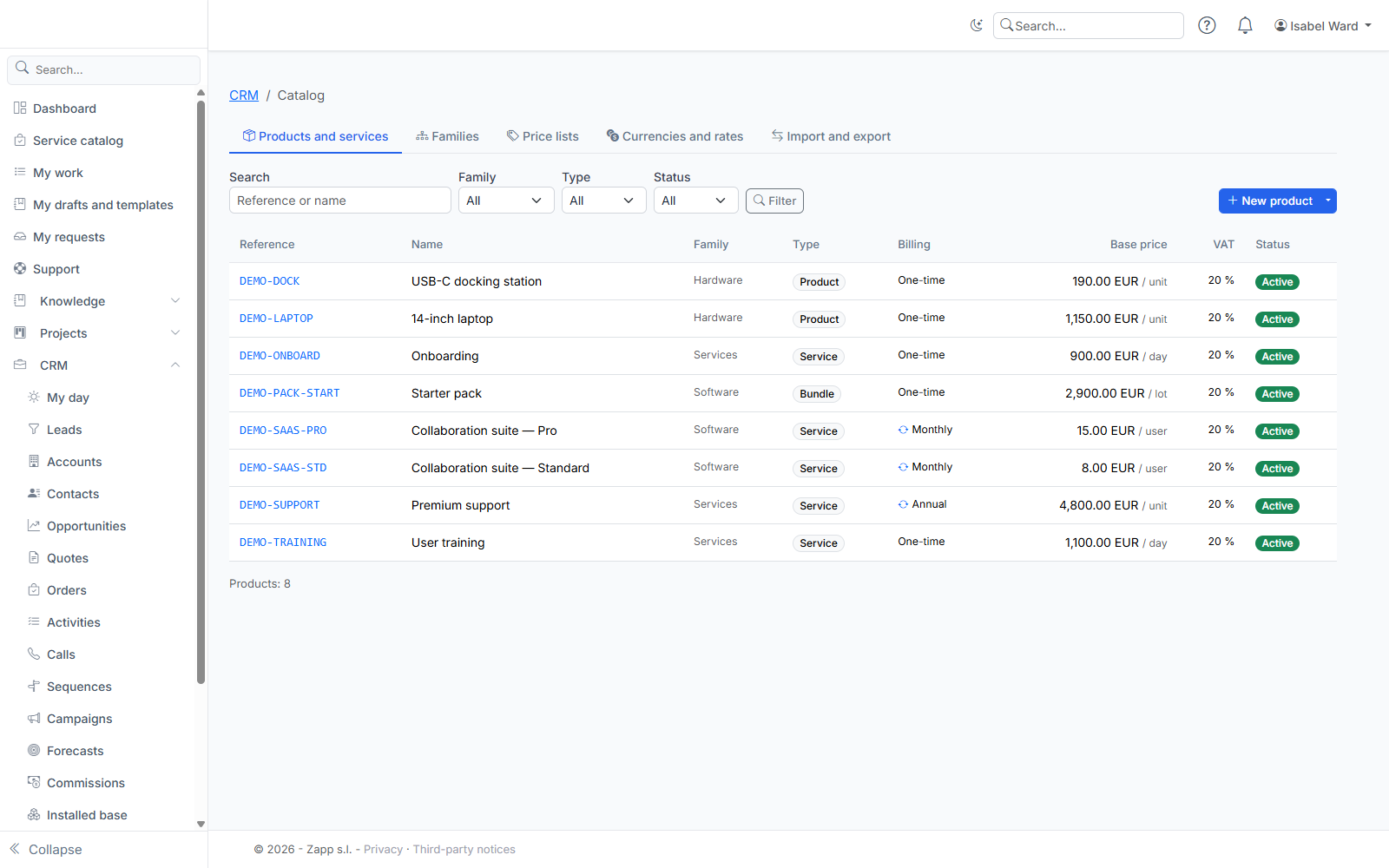
Creating a product
Click New product; the arrow next to the button also offers New service and New bundle. Fill in:
- the reference, unique: letters, digits and
. _ / -. It is the key for import and export; - the type: product, service or bundle;
- the family, optional;
- the name and description in each language (at least one name);
- the sales unit (unit, hour, day, month, user, licence…);
- the VAT rate;
- Active: only active products are offered in quotes.
Click Save. Prices, a bundle's composition and the simulator then appear on the record.
Subscriptions
Under Billing, choose a billing frequency other than “One-time”: monthly, quarterly, semi-annual or annual. You can then set:
- the commitment in months, which must be a multiple of the period (12 months for a quarterly subscription, for example);
- the cancellation notice period in days;
- automatic renewal.
A subscription price is a price per period. The record and the simulator also show the commitment value (the price multiplied by the number of committed periods).
Bundles
A bundle groups other products. Choose its price:
- Sum of components: the price follows the selected components, each at the tier of its total quantity, minus the bundle discount;
- Own price (price lists): the bundle has its own prices in the price lists; selected options are added on top.
Once the bundle is saved, the Bundle composition card lists its components. For each one: the quantity per bundle, and Optional if the customer may or may not take it. Add a component with the search on the last row, remove one with the cross, then click Save the composition.
A bundle may contain another bundle, but never itself, even indirectly. A product that is part of a bundle cannot be deleted: remove it from the bundles first, or deactivate it.
Cost price and margin
The Cost price card is only visible to sales managers, catalog managers and administrators. The cost source can be:
- Entered manually: a unit cost, in the base currency or another currency;
- Last purchase price: the price of the last approved, ordered or received purchase order for the linked stock item (Stock and Purchasing modules).
A bundle without its own cost costs the sum of its components. The margin is shown on the record and in the simulator; a negative margin appears in red.
The linked stock item is optional: the record then shows the quantity on hand.
Families
The Families tab organises the catalog into ranges and sub-ranges: optional code, name in each language, parent family, order. A family with sub-families cannot be deleted; deleting a family leaves its products without a family.
Good to know
- Deactivate a product rather than deleting it: it disappears from quotes but stays in the history. Deleting a product also deletes all its prices.
- Every change to a product or a bundle's composition is recorded in the history, with the old and new values.